
Examples
In the following sections screenshots of how-to use the example datasets are shown to help with integrating EOxCloudless data before purchasing the full datasets as well as understanding the download interface and tools. The EOxCloudless Examples can be accessed at:
https://cloudlessdownloads.eox.at/share/jvu06wnt
Recommended Download Tool
For convenience we offer a2fetch https://github.com/EOX-A/a2fetch for more optimized experience from our download portal.
bash
git clone https://github.com/EOX-A/a2fetch.git
cd a2fetch
chmod +x a2fetch
To install into Debian-based systems, after running the install-debian.sh the a2fetch should be available from the console:
bash
chmod +x install-debian.sh
./install-debian.sh
Usage:
bash
a2fetch
Usage: /usr/local/bin/a2fetch <input-file-with-presigned-urls> <output-dir> [base-url]
  or:  /usr/local/bin/a2fetch <single-presigned-url> <output-dir> [base-url]

If base-url is given, URLs in input file are expected to start with base-url,
and output directory structure is created relative to base-url path.
Download All Samples with a2fetch
To download all EOxCloudless samples with the a2fetch tool visit the:
https://cloudlessdownloads.eox.at/share/jvu06wnt
In this interface on the left next to the file list at the top there is a URLS button to get a files list for all the files in the location. Clicking this URLS and fetching the file list should provide the files list like: EOxCloudless____.txt. This can be directly used with the a2fetch to download efficiently and keeping the folder structure as well following the command:
bash
a2fetch EOxCloudless____.txt ${OUTPUT_DIR}To download into current working directory:
bash
a2fetch EOxCloudless____.txt .STACTA TileDirectory Showcase
STACTA TileDirectory format is used widely for EOxCloudless datasets:
- Exploitation Products
- Viewing Basic Products
- Custom Products
For this first case we can navigate the download link to STACTA-TileDirectory-2024-exploitation-ready-epsg-4326-zoom-6-0 and click the URLS button top left, which fetches the list of pre-signed URLs for the files we need to download. This should fetch you a file with following name:
EOxCloudless____STACTA-TileDirectory-2024-exploitation-ready-epsg-4326-zoom-6-0.txt
If using the a2fetch download tool the URL file list can be used to get the data:
bash
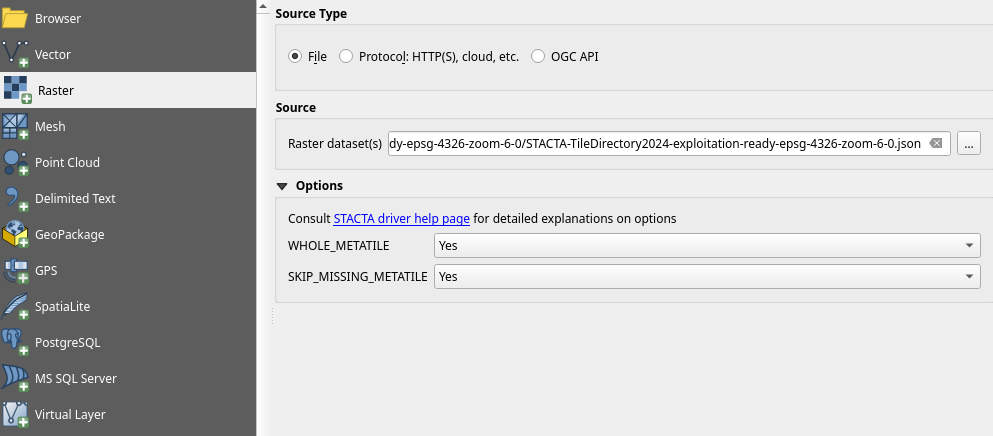
a2fetch EOxCloudless____STACTA-TileDirectory-2024-exploitation-ready-epsg-4326-zoom-6-0.txt ${OUTPUT_DIR}After finishing the download, the directory structure inside of the OUTPUT_DIR of the a2fetch should be analog to the one from the download URL structure. When reached into the STACTA TileDirectory there is the STACTA item json file: STACTA-TileDirectory2024-exploitation-ready-epsg-4326-zoom-6-0.json. Please note that the options WHOLE_METATILE=YES and SKIP_MISSING_METATILE=YES should be set to avoid errors, especially for the missing metatiles as usually there is no coverage over the oceans.
This file can be read by GDAL:
bash
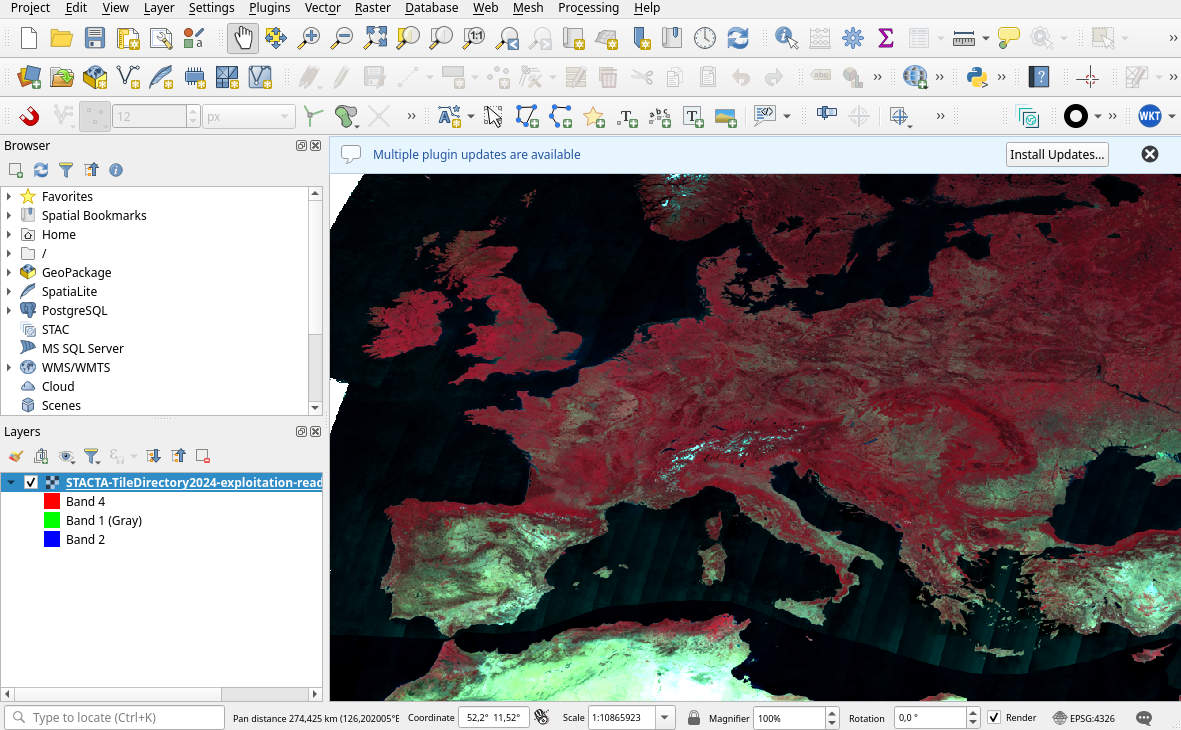
gdalinfo STACTA-TileDirectory2024-exploitation-ready-epsg-4326-zoom-6-0.jsonThis command verifies that the metadata can be read, to see the data itself loading this STACTA item into QGIS Add Raster Layer will display the data using the corresponding GDAL driver like described in chapter STAC Tiled Assets (STACTA).
GeoPackage Showcase
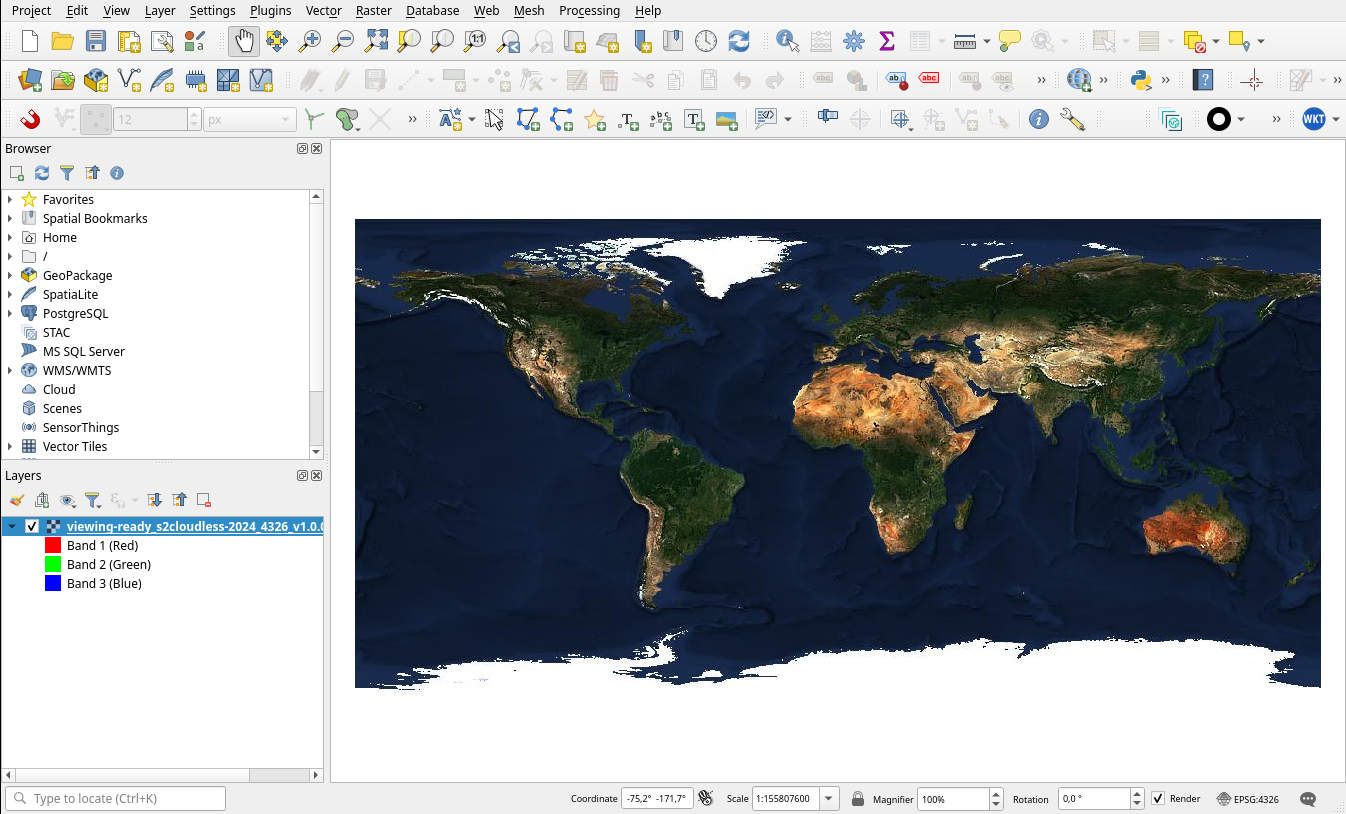
GeoPackage is one of the formats for delivery of Viewing Ready products. In the example dataset we offer this format for global low-resolution subset.
Loading the GeoPackage into QGIS is straightforward drag & drop or via Add Raster Layer. For example, one needs to locate the viewing-ready/viewing-ready_s2cloudless-2024_4326_v1.0.0_sample_l0-5.gpkg file.
SQLite Mapcache Config Showcase
Here is an example for self-hosting of Web Map Service using this file format, this is one part of the Viewing Ready products.
The sqlite data is more peculiar as this is a database file format from mapserver's mapcache which is used to host OGC Web Map Services (WMS, WMTS, TMS, ...). To fully utilize this a mapcache https://mapserver.org/mapcache/ server is required. Given that the mapcache has certain requirements itself, recommended deployment would be by utilizing containerized deployment like docker, podman or k8s.
EOX offers a public mapcache image for this use case:
registry.gitlab.eox.at/public-images/mapcache/mapcache:2025.6.0
bash
docker pull registry.gitlab.eox.at/public-images/mapcache/mapcache:2025.6.0In the samples navigate to viewing-ready folder, we will need to be there to load the mapcache config viewing-ready_s2cloudless-2024_mapcache_config.xml and the sqlite data there.
The following docker run launches a container that will host the map datasets defined by the viewing-ready_s2cloudless-2024_mapcache_config.xml config as WMS and WMTS. By default the container hosts at port 80, here in this example it is rerouted to 8088.
This will only work from "EOxCloudless_Samples-and-Documentation/viewing-ready/" directory!
bash
docker run \
  --rm \
  --cpus 2 --memory 2G \
  -p 8088:80 \
  --name mapcache-eoxcloudless-test-1 \
  --volume `pwd`/viewing-ready_s2cloudless-2024_mapcache_config.xml:/var/www/mapcache/maps.xml:ro \
  --volume `pwd`/apache.conf:/etc/apache2/sites-available/000-default.conf:ro \
  --volume `pwd`/viewing-ready_s2cloudless-2024_4326_v1.0.0_sample_l0-5.sqlite:/var/www/mapcache/s2cloudless-2024_4326_v1.0.0.sqlite:ro \
  --volume `pwd`/viewing-ready_s2cloudless-2024_3857_v1.0.0_sample_l0-5.sqlite:/var/www/mapcache/s2cloudless-2024_3857_v1.0.0.sqlite:ro \
  --volume `pwd`/start-server:/usr/bin/start-server:ro \
  registry.gitlab.eox.at/public-images/mapcache/mapcache:2025.6.0 \
  /usr/bin/start-server
After running the container the Web Map Tile Services can be accessed via localhost at the given port 8088, e.g.:
http://localhost:8088/wmts/1.0.0/WMTSCapabilities.xmlhttp://localhost:8088/wms?service=wms&request=getcapabilities
If these capabilities can be reached/read, the setup is ready to serve data. In QGIS this can be done via Add WMS/WMTS Layer option or directly with requests like these: http://localhost:8088/wmts?layer=s2cloudless-2024_3857&style=default&tilematrixset=GoogleMapsCompatible&Service=WMTS&Request=GetTile&Version=1.0.0&Format=image/jpeg&TileMatrix=0&TileCol=0&TileRow=0
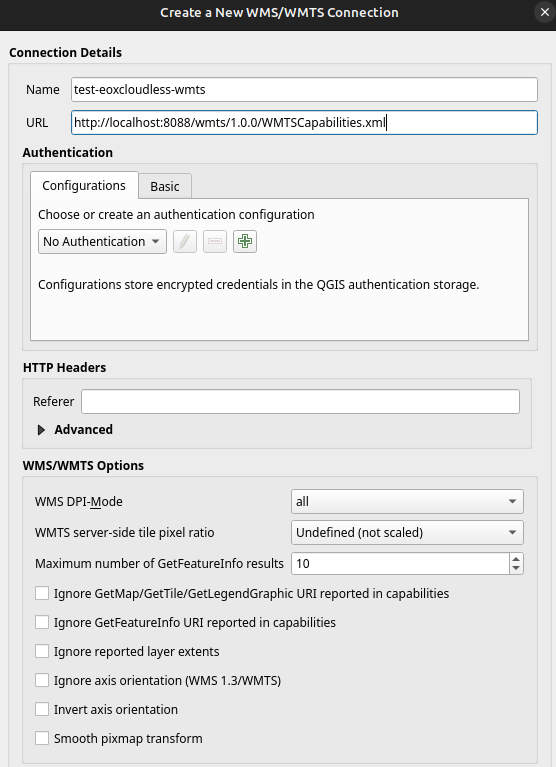
This will allow to connect and access the layers of the WMTS service via QGIS interface and these can be loaded into the mapping environment.
Additionally the WMS and WMTS layers can usually be loaded into other applications or webpages (with e.g.: OpenLayers).